A Wifi Hidden Camera can be difficult to identify because many everyday devices also use wireless networks. A phone app may reveal unfamiliar network names, but it cannot reliably detect every camera. Some devices use separate networks, while others may not be transmitting at the moment you check. Keep that limitation in mind.
Cybersecurity expert Bruce Schneier has said, “Security is a process, not a product.” That principle applies when checking a room, too: careful observation is more dependable than trusting one gadget or quick test. Look for objects that seem oddly placed, such as a clock facing a bed or a charger with an unexplained pinhole. Check visible surfaces and device labels without dismantling property or disturbing wiring. Small details matter.
This guide presents seven practical ways to assess a space, including reviewing connected-device lists, using a flashlight to inspect likely lens reflections, and checking for unusual objects. These steps can help you notice clues, but they cannot prove that a camera is present—or that a room is clear. No single test is perfect. False alarms happen; I might overlook something, too. If you find a suspicious device, avoid handling it unnecessarily. Record its location and visible details, then contact the property owner or an appropriate professional. The goal is a calm, evidence-based check that respects privacy and avoids risky assumptions.
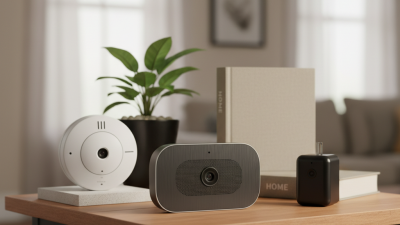
A hidden WiFi camera may resemble an ordinary charger, clock, smoke alarm, or decorative object. Notice items that seem newly placed, oddly angled, or pointed toward a bed, desk, or changing area. Look for a tiny glassy opening. A phone flashlight can reveal a lens glint from some angles, but reflections alone prove nothing.
Check small openings in objects near power outlets and furniture, especially when their placement feels unusual. Feel nearby devices for warmth, but remember that chargers and electronics often get warm during normal use. Listen for faint clicks or hums only as clues, not confirmation. Some cameras make no sound at all.
You can review your router’s connected-device list for unfamiliar entries, if you have access. Names may be vague, and unknown devices can belong to guests or household electronics. A WiFi scan cannot identify a camera with certainty. I’ve found that ordinary objects can look suspicious once you start searching, so pause and compare the item with similar objects in the room. If concern remains, document what you noticed and ask a qualified security professional to inspect it.
Wi-Fi frequency ranges commonly used by devices in the United States
When checking your router’s connected-device list or using a Wi-Fi scanner, look for unfamiliar devices across these bands. A device appearing on the network is not proof it is a camera, and a camera may be offline or use a different connection. Frequency ranges are approximate U.S. allocation envelopes; some bands include gaps, and availability varies by location.
When you enter a room, pause before unpacking and scan it at a comfortable pace. Notice objects that seem out of place, recently added, or aimed toward a bed or changing area. Check shelves, clocks, vents, and decorative items from ordinary viewing distance. Look for an unexplained cable, a small glass-like opening, or an object positioned to face a private space. Small details matter. But appearance alone proves nothing. Many ordinary devices have openings, lenses, or power cords.
Compare similar objects around the room. Does one clock look different from the others, or does a charger sit where it serves no clear purpose? Avoid touching or dismantling unfamiliar equipment, especially smoke alarms and other safety devices. That could damage something important. It is easy to become suspicious of every dark spot; I can be wrong, too.
A careful visual check cannot confirm whether a device records or connects to WiFi. If an object still concerns you, note its location and ask the property manager or a qualified privacy professional to review it.
Open your router’s device list and review every item connected to your WiFi. The page may show a device name, connection time, and local address. Check it when your home is quiet, so fewer phones and tablets appear temporarily. Compare the list with devices you recognize, such as a television, printer, or smart speaker. Keep a simple note of their names and addresses.
Unknown entries deserve a closer look, but they are not proof of a camera. Device names can be vague or change after an update. Names can mislead. Turn off your own smart devices one at a time, then refresh the list to see which entry disappears. If an unfamiliar device remains, check the router’s help information or ask your internet provider how to identify it. A camera may use a separate network or may not be online, so this check cannot find every camera. Not proof. Review only a network you own or are authorized to manage, and avoid blocking devices until you know what they are; I have mistaken a visitor’s phone for an unknown device before.
| Tip | What to Check | How to Review It | What the Result May Mean |
|---|---|---|---|
| 1. Open the router’s connected-device list | Devices currently connected to your Wi-Fi, including their displayed names and connection status. | Sign in to the router’s administration page or use its network-management interface. Look for sections labeled “Connected Devices,” “Clients,” or “DHCP Clients.” | An unfamiliar entry is worth checking, but it is not proof of a camera. Phones, televisions, speakers, and other smart devices may appear with generic or unexpected names. |
| 2. Record device details | Each entry’s local IP address, MAC address, device name, and whether it uses Wi-Fi or a wired connection. | Make a list or take a screenshot, then compare the details with devices you own or have permission to use. | A MAC address identifies a network interface, not a device’s purpose. Some phones also use private or randomized MAC addresses, so an address may change. |
| 3. Compare the list with your own devices | Phones, computers, streaming equipment, smart-home products, visitors’ devices, and other known clients. | Temporarily disconnect or switch off one known device at a time, then refresh the router’s client list and note which entry disappears. | This can help match entries to known devices. A device that remains may be asleep, wired, or still connected; router lists do not always update instantly. |
| 4. Check the device name carefully | Names such as “camera,” “IPC,” or a generic model label, as well as blank or unfamiliar names. | Search the exact name in the router interface or check documentation for devices you own. Treat names as clues, not verification. | Names can be changed, abbreviated, or omitted. A camera may use a generic name, while an unrelated device may include camera-related wording. |
| 5. Review connection times and activity | When an unfamiliar client connected and whether it appears online repeatedly. | Check the router’s client history or event log, if available. Compare connection times with your own device use and authorized visitors. | Repeated activity can help prioritize an entry for follow-up, but online status or connection frequency cannot establish that a device is recording. |
| 6. Treat data use as a clue, not a verdict | Unusually high or regular upload traffic attributed to an unknown client, if the router provides per-device usage statistics. | Review usage over time rather than relying on one reading. Consider other possible sources, such as backups, video calls, or software updates. | Video devices may upload data, but many cameras record locally or send data intermittently. Traffic patterns alone cannot confirm or rule out a camera. |
| 7. Investigate safely and document findings | Any entry you still cannot identify after checking your own devices and authorized users. | Save the device details and consult the network owner or administrator. On a network you control, you can change the Wi-Fi password and reconnect only authorized devices. | Do not access, disable, or reset equipment you do not own or manage. A router scan can identify network clients, but it cannot reliably detect every hidden camera. |
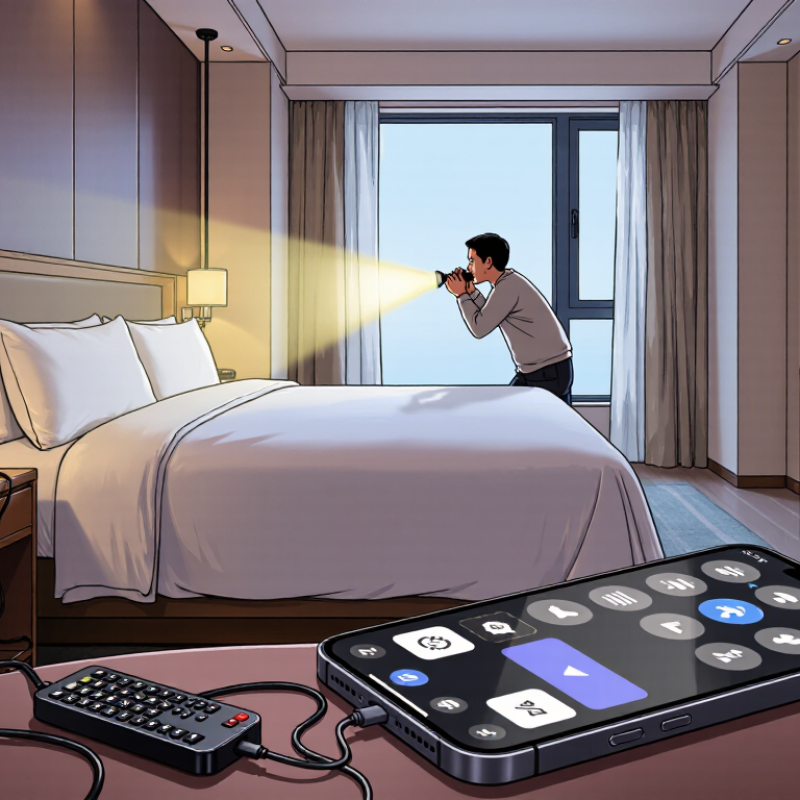
A phone can help you spot a camera lens, but it cannot confirm that a device is recording. Dim the room and move slowly. Sweep your phone’s flashlight across smoke detectors, clock faces, vents, and other objects with a clear view of the room. Look for a tiny, sharp glint that stays visible from different angles. Ordinary glass and polished screws can shine too, so one reflection proves very little. Check suspicious objects up close only when it is safe and appropriate.
Your phone camera may also reveal infrared lights used for night vision. Darken the room, then scan it with the camera while watching the screen for small white or purple points. Try both front and rear cameras; some phone cameras filter infrared more strongly than others. A TV remote’s infrared light can serve as a quick test: point it at the camera and press a button. If no light appears, that camera may simply block infrared. Not conclusive. Repeat the check from another angle, and note whether the light remains fixed when you move. I once mistook a glossy screw for a lens, which is a useful reminder: phone checks are clues, not proof.
A WiFi alert is a clue, not proof. An unfamiliar device name may belong to a speaker, printer, or guest’s phone. Check your router’s connected-device list, then compare each entry with equipment you recognize. Names can be vague, and some devices use generic labels. A network scan cannot confirm that a camera is present.
Look carefully at objects that seem out of place, such as a charger facing a bed or a small lens-like opening in a clock. Don’t dismantle property or confront someone based on one clue. Pause before acting. Note the object’s location, take a photograph if appropriate, and check whether it is connected to power or your network. You may need a second opinion.
It is tempting to trust a detection app, but results can be misleading. Turn off your own smart devices one at a time and see whether the unfamiliar entry disappears; this can help narrow possibilities, though it is not definitive. If a device still raises concern, ask the property manager or a qualified technician to inspect it. A calm verification step may feel slow, but it helps prevent a mistaken accusation.